Chapter 5 — BlockFlow
Designer Editor
The Designer page is where conversation flows are built — from the initial greeting to complex interactions involving data processing, calls to external systems and dynamic responses, without writing code.
BlockFlow builds chatbot and voicebot assistants through a block-based interface. By connecting nodes of various types, users create conversational scenarios with multi-agent reasoning and self-hosted knowledge bases for advanced information retrieval. All changes are represented visually, with the ability to test and simulate in real time.
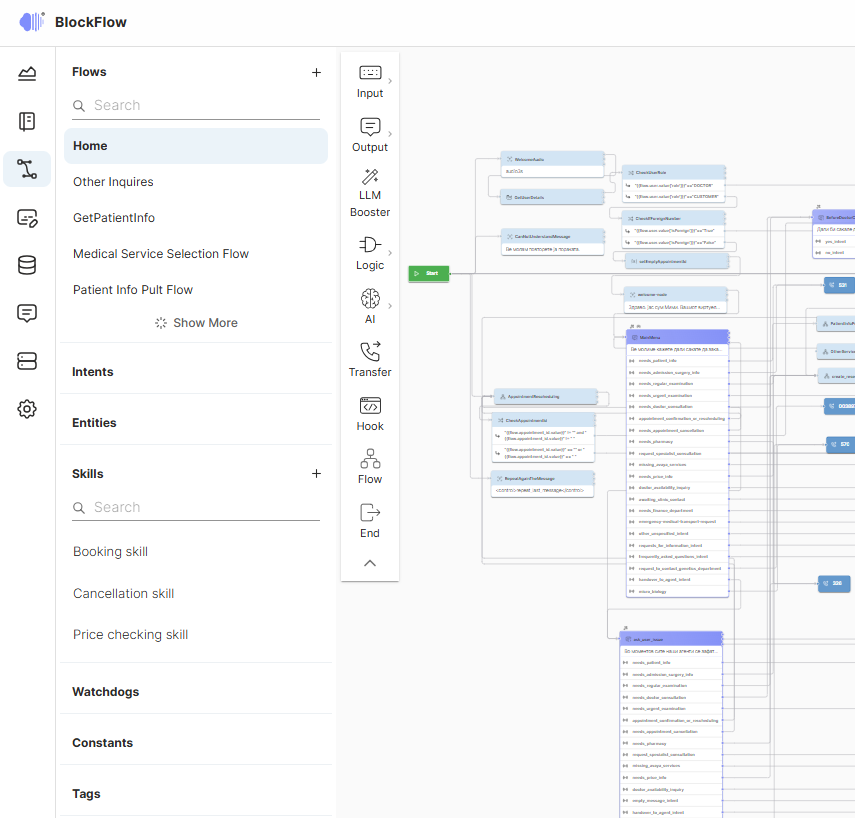
Figure 1 — BlockFlow conversation designer.
Main functionality
- Conversation flow creation — define step by step how the dialogue unfolds, with branching logic and alternative scenarios.
- Integration with external systems — call external API services to retrieve data such as user information, order status or account balance.
- Data and condition management — define conditions, calculations and filters that decide how to proceed.
- Automatic request recognition — built-in LLM-based intelligence analyses speech or text and recognises intent without strictly defined rules.
- Generation of natural responses — the LLM uses the knowledge base, conversation context and API data to answer like a real agent.
- Redirection to a real agent — the assistant transfers the call when a request cannot be resolved automatically.
- Testing and simulation — every flow can be tested immediately in a conversation simulator.
- Production deployment — a finalised project can be published and made active for production use.
Core components
These components separate business logic, reusable resources and performance monitoring, so complex flows stay controlled and consistent.
Organizations
The highest level. Each organisation manages its own conversation flows, use cases and resources, keeping different customers, business units or operational domains separated.
Conversation flows
Within an organisation, each use case is an isolated scenario or interaction path, which simplifies maintenance and prevents logic or resources from mixing.
Blocks
The main building elements of a flow. Depending on its role a block can output text, wait for user input, perform reasoning or recognise intent. All available blocks are in the ToolBox menu.
Intents
User goals or meanings the system should recognise within a flow, used to interpret what the user wants and route the conversation accordingly.
Entities
The variables — types of information — used within a flow. Instances store the actual values provided by the user: names, dates, locations, service types and other task-specific data.
Constants
Fixed parameters referenced across blocks and logic branches, so repeated values are managed centrally rather than hardcoded in several places.
Tags
Used for measuring KPIs and tracking progression. Each block can carry one or more tags; whenever a user reaches the block, the tag is incremented — a simple mechanism for classifying events and measuring scenario performance.
Tools
LLM-based functional resources invoked from LLM-powered blocks when external functionality, structured processing or reusable capabilities are needed. Tools are reusable and LLM-agnostic.
Watchdogs
Rules and safeguards that keep the LLM on the rails — constraining outputs, maintaining alignment with the intended scenario and reducing the risk of irrelevant or undesired responses.
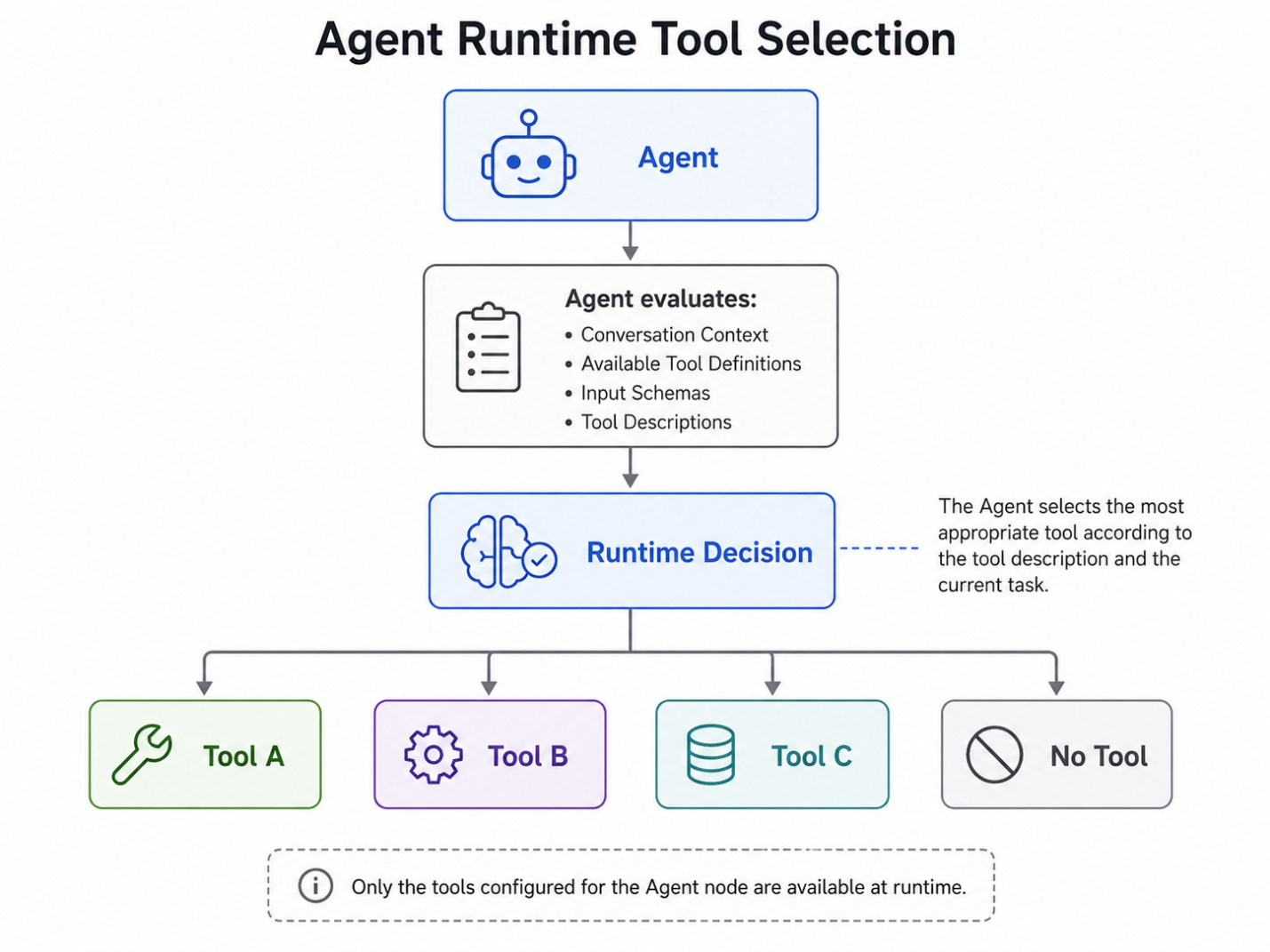
Figure 2 — BlockFlow main menu and Skills.
Creating a project
Independent use cases are isolated into separate projects for simpler maintenance and scalability. Creation is a three-step operation; the organisation must be set up first.
Step 1 — Basic information
Complete all required fields in the project creation form. To reuse an exported project as a template, an additional import step accepts a configuration file containing the project data.
Step 2 — Language selection
Select the project language and, optionally, the custom voice used for text-to-speech. This determines the default language for the LLM, STT and TTS models. Without a custom voice, a generic voice for the selected language is used. Available languages and voices are configurable per organisation.
Step 3 — Project configuration
Define timeout, redirection and message recording settings — maximum call attempts per user within six hours, chatbot timeout, redirect VDN number, redirect message, recording duration and recording silence threshold. Create Project saves the configuration. Details of every parameter are documented under Project settings .
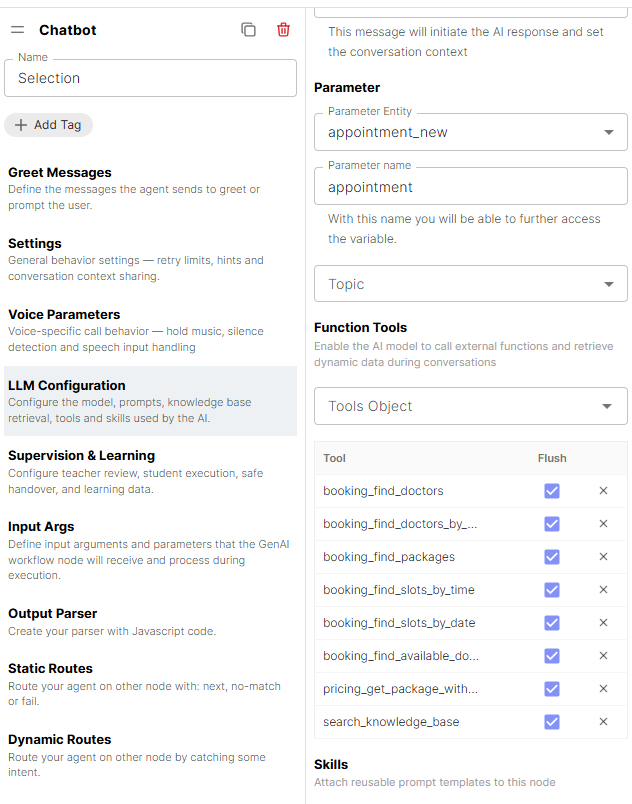
Figure 3 — Project configuration.
Building scenarios
1. Add nodes
Open the scenario editor, select the nodes panel and place nodes on the canvas to represent the actions, questions and decisions the assistant will make. Input nodes gather user input, output nodes send responses, logic nodes add conditions and operations, and AI nodes provide recommendations or answers.
2. Connect nodes
Use connectors to link nodes into a logical flow — an input node to an output node to handle a query and respond, with logic nodes in between to branch on user input or conditions. Ensure the flow covers all plausible scenarios.
3. Evaluate flows
Use Test Mode to simulate conversations: interact as a user would, check node behaviour, validate responses and connections, and test edge cases such as unexpected input.
Figure 4 — Routes setup.