Chapter 8 — Operations
Conversation Monitor
A set of components supporting continuous improvement of VoiceBot quality through analysis of previous interactions and identified errors — the human-in-the-loop layer of the platform.
Human supervisors review conversations and contribute directly to ongoing optimisation, improving LLM response quality, ASR transcription accuracy, and the naturalness and correctness of TTS synthesis. The module also persists complete transcripts, which can be stored, categorised and searched with full-text search — making it easier to review historical interactions, identify recurring issues, analyse user behaviour and refine flows and models.
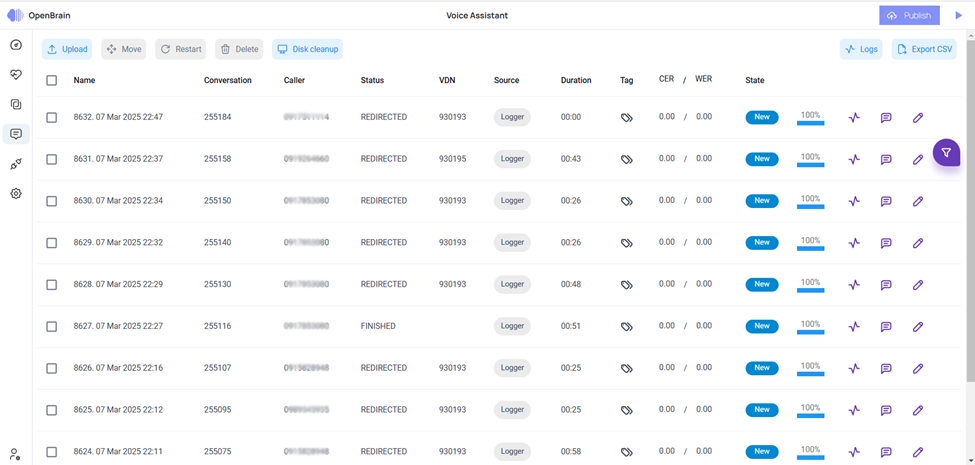
Figure 5 — Conversation Monitor main screen.
Key capabilities
- Automated speech transcription — converts spoken language into text using the STT module.
- Speaker diarisation — differentiates speakers and labels each participant.
- Audio segmentation — breaks long conversations into shorter segments following silence thresholds and configurable parameters.
- Transcription editing tools — a graphical interface for reviewing, correcting and refining transcriptions.
- Efficient organisation — sorting, filtering and categorising transcripts for retrieval and analysis.
- Searchable transcripts — keyword search across transcripts.
- Data export and integration — export in JSON, TXT or CSV and integrate with third-party applications.
- Performance analytics — aggregated insight into STT accuracy, common errors and potential improvements.
Working with documents
After signing in, the platform lists the available projects; a project is opened with the Open button in the Actions column. Inside a project, the side navigation is structured as a step-by-step guide:
- Documents — upload the relevant files.
- Members — add other team members involved in the project.
- Statistics — statistics for the uploaded documents.
- Settings — project settings.
Selecting Documents lists the files assigned to the project. The Upload button offers two options: upload a single file, or upload a compressed .zip folder of files.
Creating and uploading an audio file
Requirement
The file must be mono (single channel) in WAV or MP3 format.
The new-document form contains:
- Document name — required; identifies the document within the platform.
- Type — the document category: Training, Validation or Test.
- Use diarisation — when selected, the minimum and maximum number of speakers present in the audio is defined. The audio is segmented by speaker at creation: with two speakers, the first speaker's audio appears on the left channel and the second on the right, allowing clearer differentiation and processing.
- Upload file — choose the audio file locally.
- Create — creates the corresponding audio file.
Processing begins immediately and completes when the status reaches 100%. The document is then opened with the Open button at the end of its row. Inside, the audio is split into left and right channels, each assigned to a separate speaker; controls at the bottom of the screen handle playback and navigation. Text correction is started from the upper command palette — with the editing command active, the cursor can be placed directly on the text of any conversation bubble.
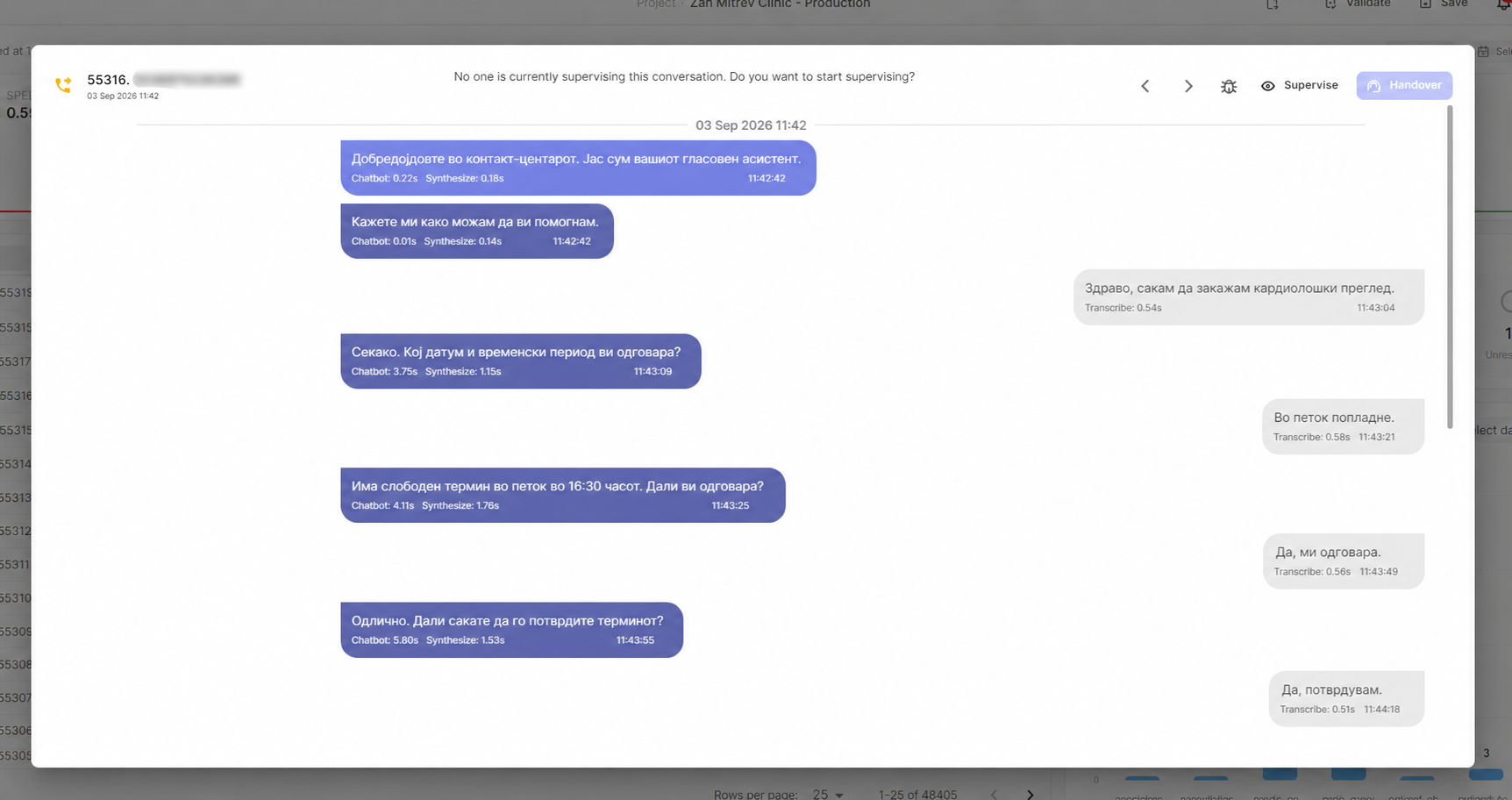
Figure 6 — Preview of the conversation between user and agent.