Chapter 3 — Setup
Organizations & Projects
Creating a VoiceBot organisation, provisioning a conversation project, and configuring project-level call handling, recording, chatbot endpoints and knowledge base integration.
Creating a new VoiceBot organisation
Organisations represent distinct VoiceBot configurations and are created through the BlockFlow interface.
- Open the Organization tab.
- Click Create Organization in the upper right.
- Fill in the basic organisation information and assign the users who belong to it.
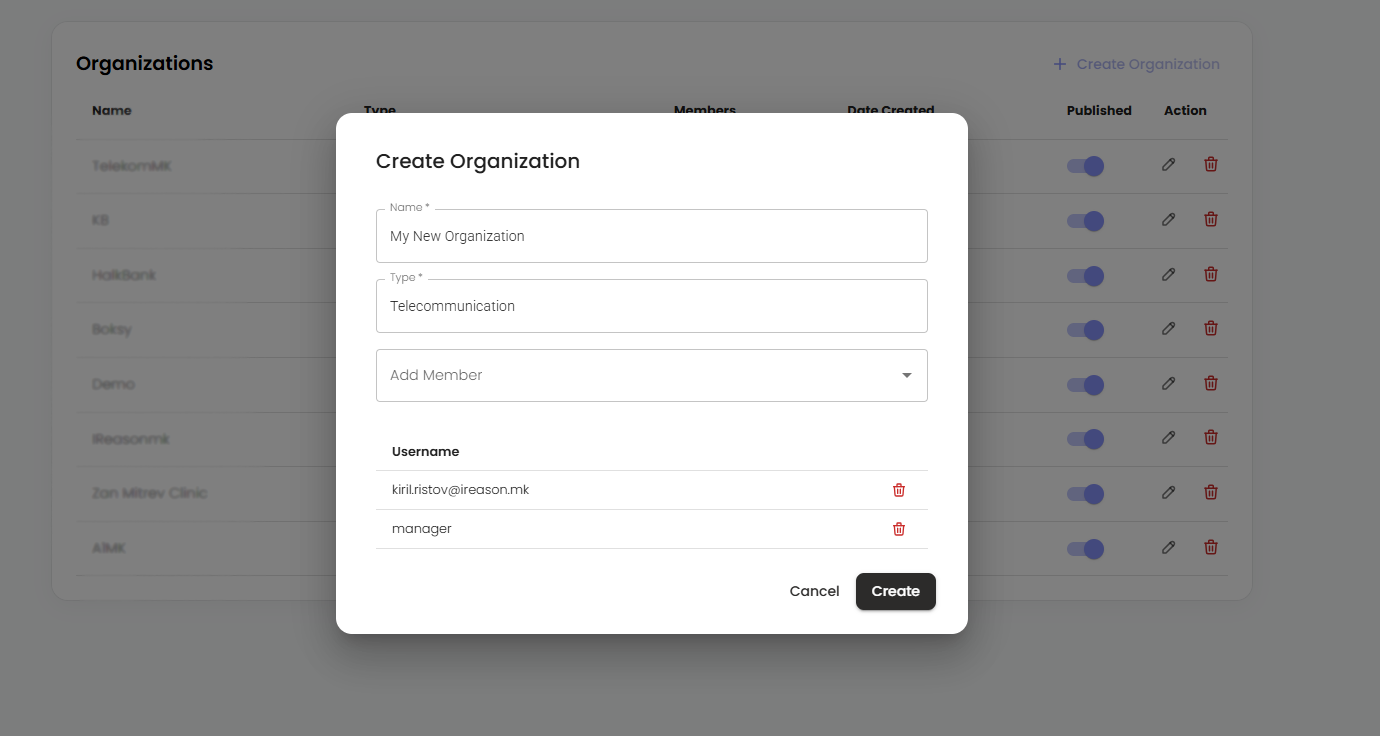
Figure 1 — Create Organization dialog.
Creating a conversation project
Once the organisation is configured, projects can be created from the default Projects page using the Create Project button. The dialog requires the following details:
| Field | Purpose |
|---|---|
| Project name | Name of the new VoiceBot environment, for example “Customer Support Bot — English”. |
| Language | The language the VoiceBot uses for speech recognition, synthesis and natural language understanding. |
| Organization | The organisation within which the project resides. |
| Conversation Monitor project ID | The identifier the Conversation Monitor uses to associate and log the project's conversations. The Conversation Monitor provides the human-in-the-loop functions: call recording, post-processing and editing, transcription, LLM fine-tuning and TTS improvement. |
| Description | Short description outlining the purpose or scope of the VoiceBot environment. |
| Mode | Stage during development; migrated to Production once the project is production-ready. |
| Status | Maintenance metadata — Building Scenario, Testing, or Production. |
| Active | Toggles between Live and Maintenance mode in production. In Maintenance mode calls are redirected to the configured fallback number. |
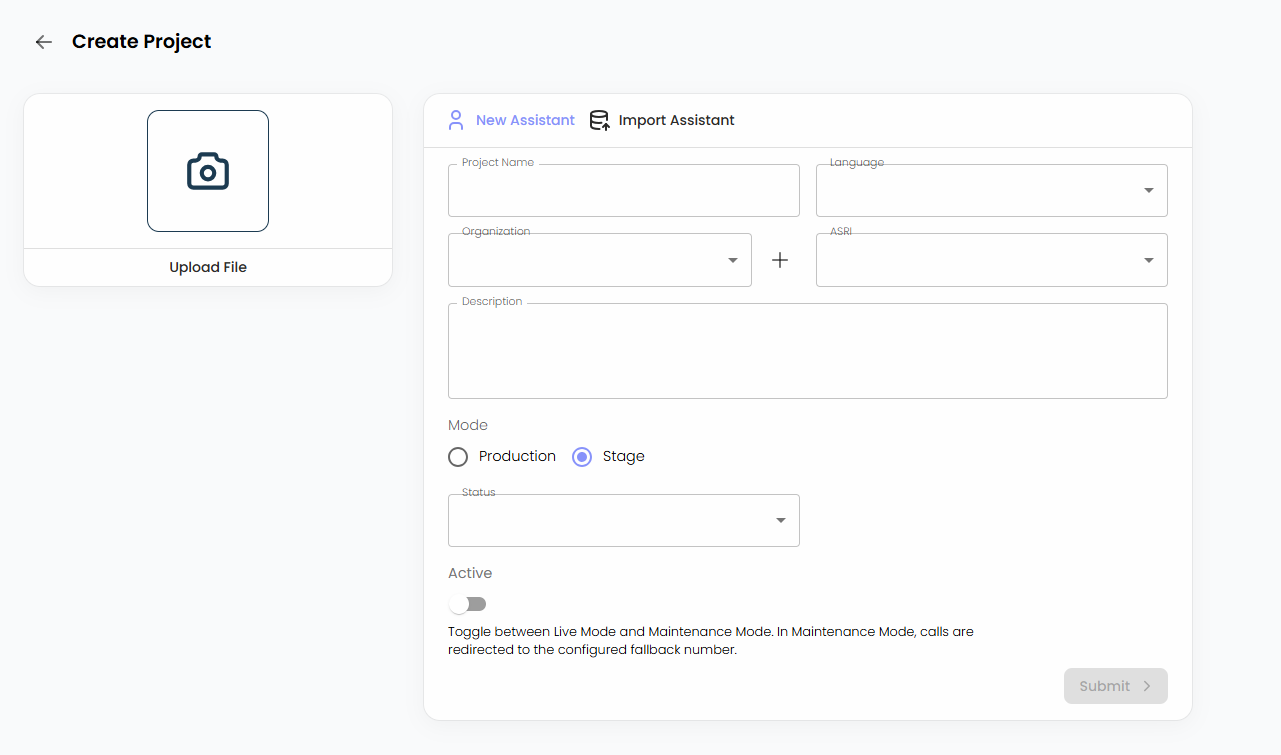
Figure 2 — Create new VoiceBot Project dialog.
Project settings
Administrators configure call-handling behaviour, recording parameters, chatbot communication endpoints, knowledge base integration and monitoring settings. The dialog is organised into the sections below; Save stores the updated parameters and Reset reverts every field to its default or last saved value.
Redirect message properties
- Maximum call attempts per user — how many calls a user may initiate within a defined time window (6 hours) before calls are redirected to human agents.
- Chatbot timeout — maximum waiting time for a chatbot response before a fallback action triggers.
- Redirect VDN number — the number or extension calls transfer to when the chatbot fails to respond, the conversation cannot proceed, or the project is in maintenance mode.
- Success tag — marks successful completion of a scenario, for example appointment creation.
- Redirect message — played to the user when a redirection is triggered by timeout or failure.
Message recording
Defaults for capturing the caller's voice input; both can be overridden per node in a scenario.
- Recording duration — maximum time the user may speak during an interaction segment.
- Recording silence — silence threshold after which recording stops automatically.
Chatbot communication
- Conversation Logger API URL — stores conversation logs, exchanged messages and metadata.
- Chatbot API — primary endpoint for sending user input and receiving AI-generated responses.
- Chat UI API — handles user message delivery and chatbot reply processing in the conversational interface.
- Health Check Monitoring API — verifies chatbot availability and responsiveness.
- Initiate Call API — triggers outbound calls initiated by the VoiceBot.
Knowledge base integration
- Knowledge Base Refresh API — reloads or refreshes the knowledge base when updates occur.
- RAG URL — default retrieval-augmented generation endpoint for queries against indexed knowledge.
- Neo4j — connection endpoint for the graph database used for structured knowledge representation and GraphRAG queries.
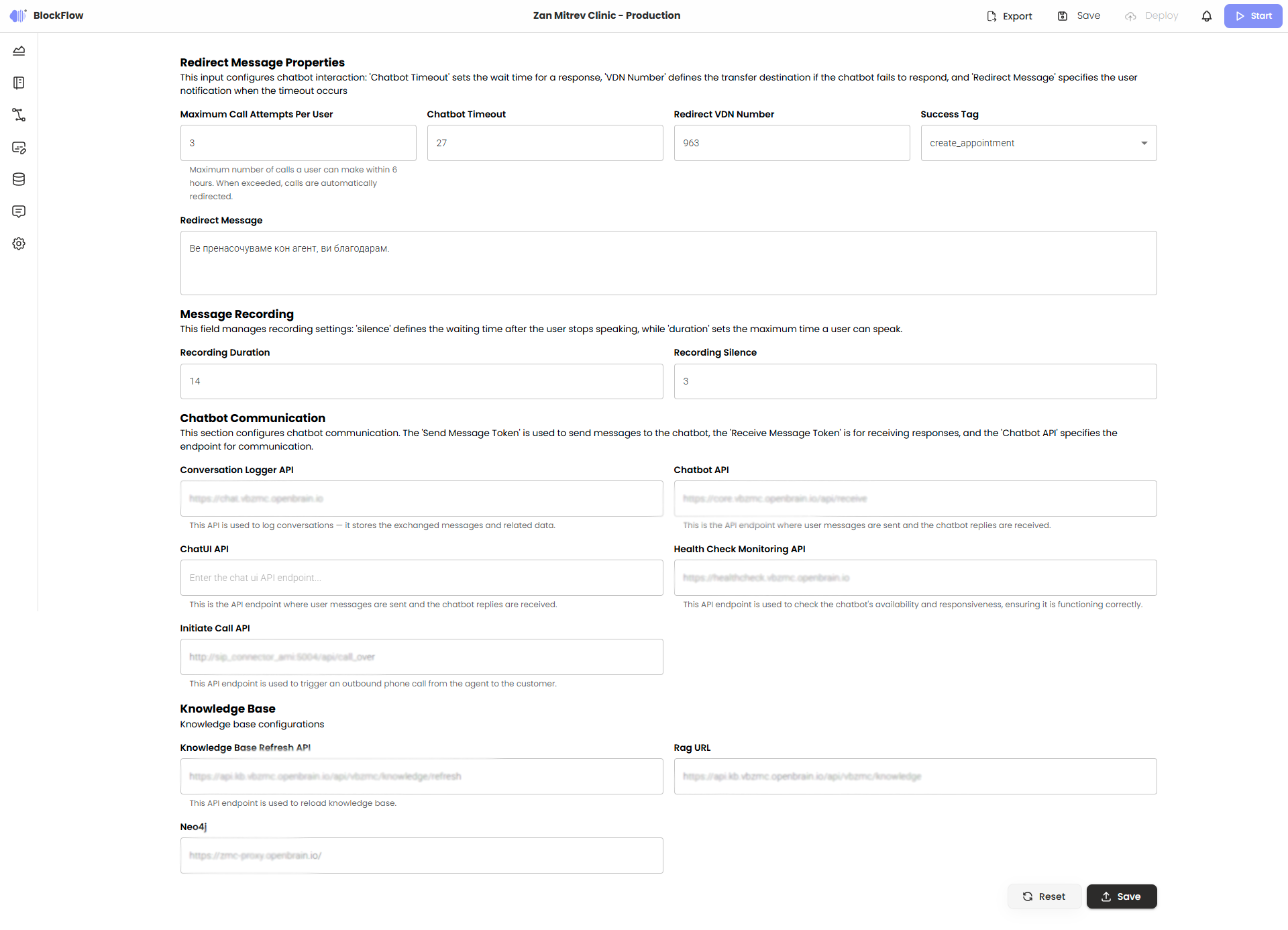
Figure 3 — BlockFlow project configuration.