Chapter 8 — Operations
Analytics & Supervision
The dashboard, the supervision console, pronunciation vocabulary, project settings and service health — the day-to-day operating surface of a deployed VoiceBot.
Analytics dashboard
The central control panel. It monitors active conversations in real time along with success rates, average processing times and the performance of the AI models — speech-to-text, text-to-speech and chatbot response.
Main functionality
- Live conversation monitoring — every conversation currently active in the system.
- Performance statistics — average speech processing time, chatbot response time and text-to-speech conversion time.
- Active calls overview — number of active calls per hour.
- Conversations table — ongoing and completed conversations, filterable by status (active, completed, redirected).
- Missed calls statistics and supervision tracking — how many conversations have been reviewed by supervisors.
- Conversation outcomes — how many were completed successfully, redirected to an agent, or failed.
Charts and insights
- Chatbot response time — average response time with a trend chart over the last 24 hours.
- TTS and STT response time — average module response times and 24-hour trends.
- Active calls — current active calls and hourly response trends over 24 hours.
- Calls per day — daily counts categorised as successful, redirected or unsuccessful, with a success rate line.
- Call log table — calls in descending order with filtering; each conversation opens to reveal details and recordings.
- Total conversations — total calls with success, redirection and failure percentages.
- Transfer calls per VDN — daily redirections and the numbers calls were transferred to.
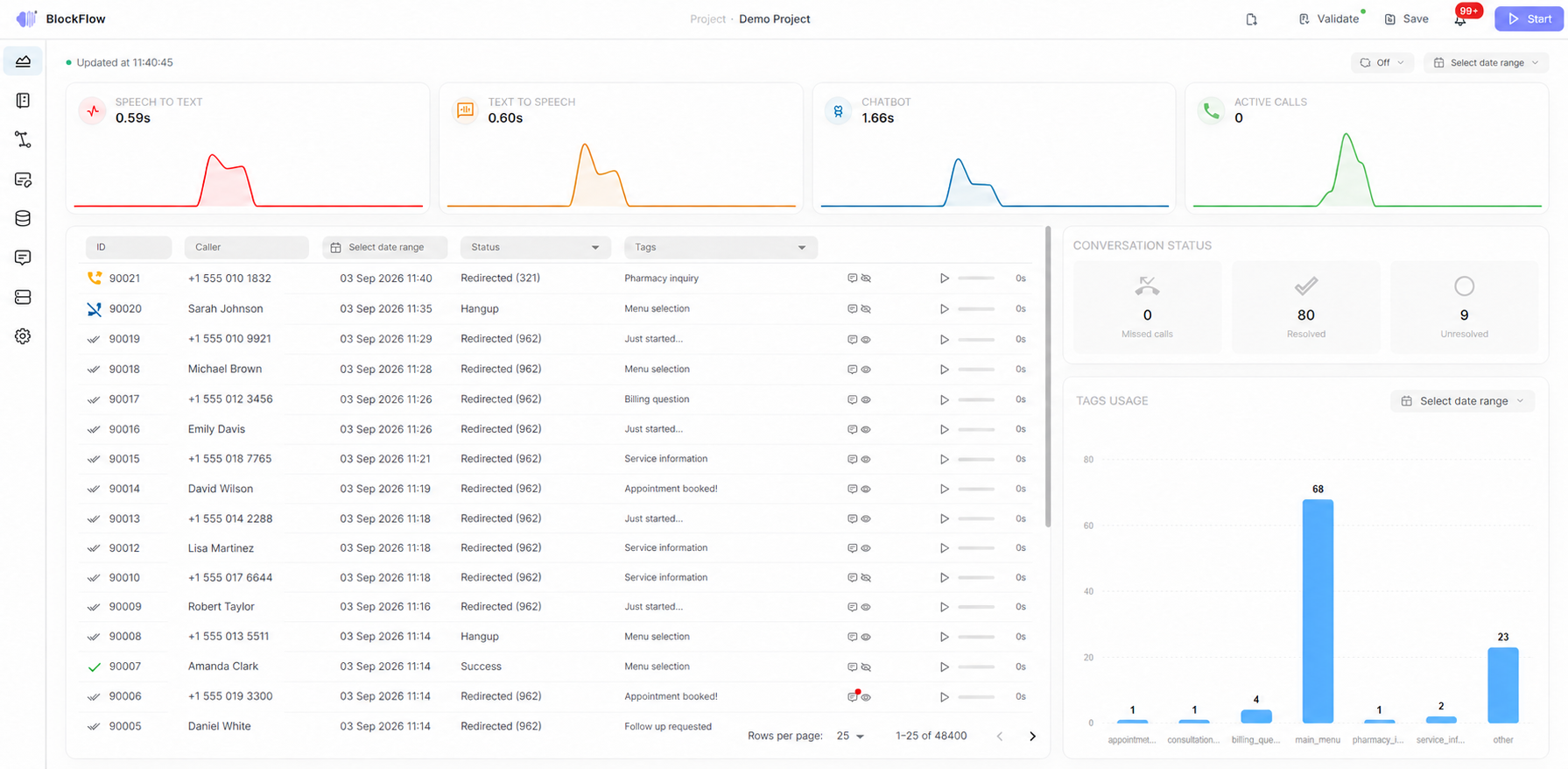
Figure 1 — Main analytics dashboard.
Supervision panel
Built for detailed review, supervision and management of conversations in real time. Supervisors and agents monitor active conversations, search call history, analyse individual interactions, and initiate or redirect calls from the interface — conceptually similar to a classic contact centre supervisor console.
- Live conversation view — all active conversations with status, agent and duration.
- Advanced search and filtering — by phone number, date, status, agent or duration, plus quick search by ID or keyword.
- Conversation history — the history for a specific user, based on phone number.
- Call control — initiate a new call to a user, or redirect an active call to a real agent (takeover).
- Conversation debugging — detailed view of the flow, sent and received messages, node activations and model responses.
- Monitoring and supervision mode — passive monitoring, or active takeover when human intervention is required.
- Comments and notes — supervisors annotate conversations for internal analysis.
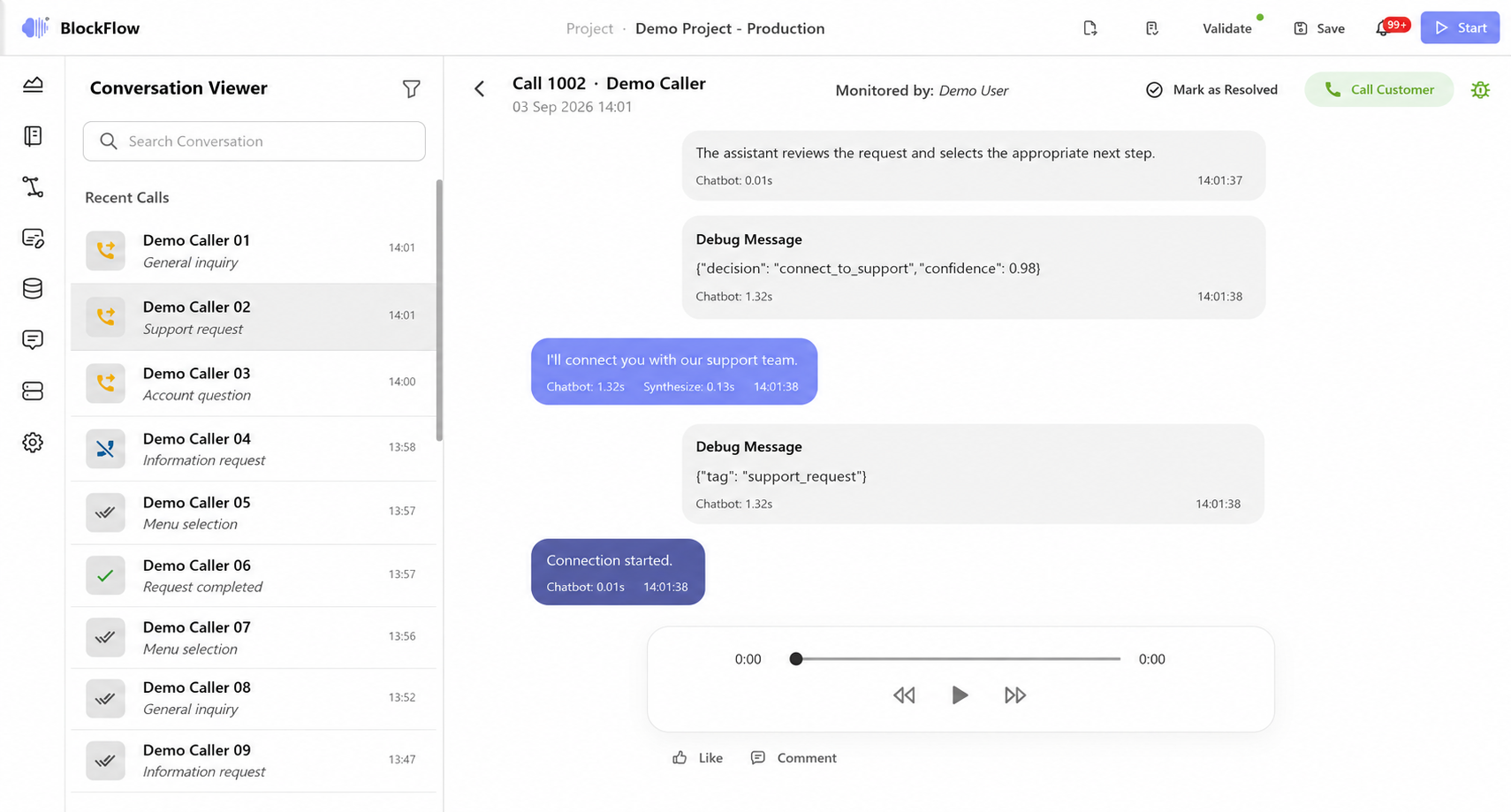
Figure 2 — Supervision panel.
Vocabulary page
Trains the text-to-speech model to pronounce specific words, abbreviations and anglicisms correctly. Users define the phonetic representation of words the model mispronounces — for example spelling out how “Facebook” should be read in the assistant's language. This is especially useful for brands, technical terms, names and abbreviations with no natural form in the spoken language.
- Add words and pronunciations — enter a word and its phonetic version.
- Edit and delete entries — adjust an entry when the model should interpret it differently.
- Automatic application in TTS — the defined pronunciation is used whenever the word is encountered.
- Search and filtering — keep defined words accurate and consistent.
- Pronunciation test — hear how the model will read the word directly from the interface.
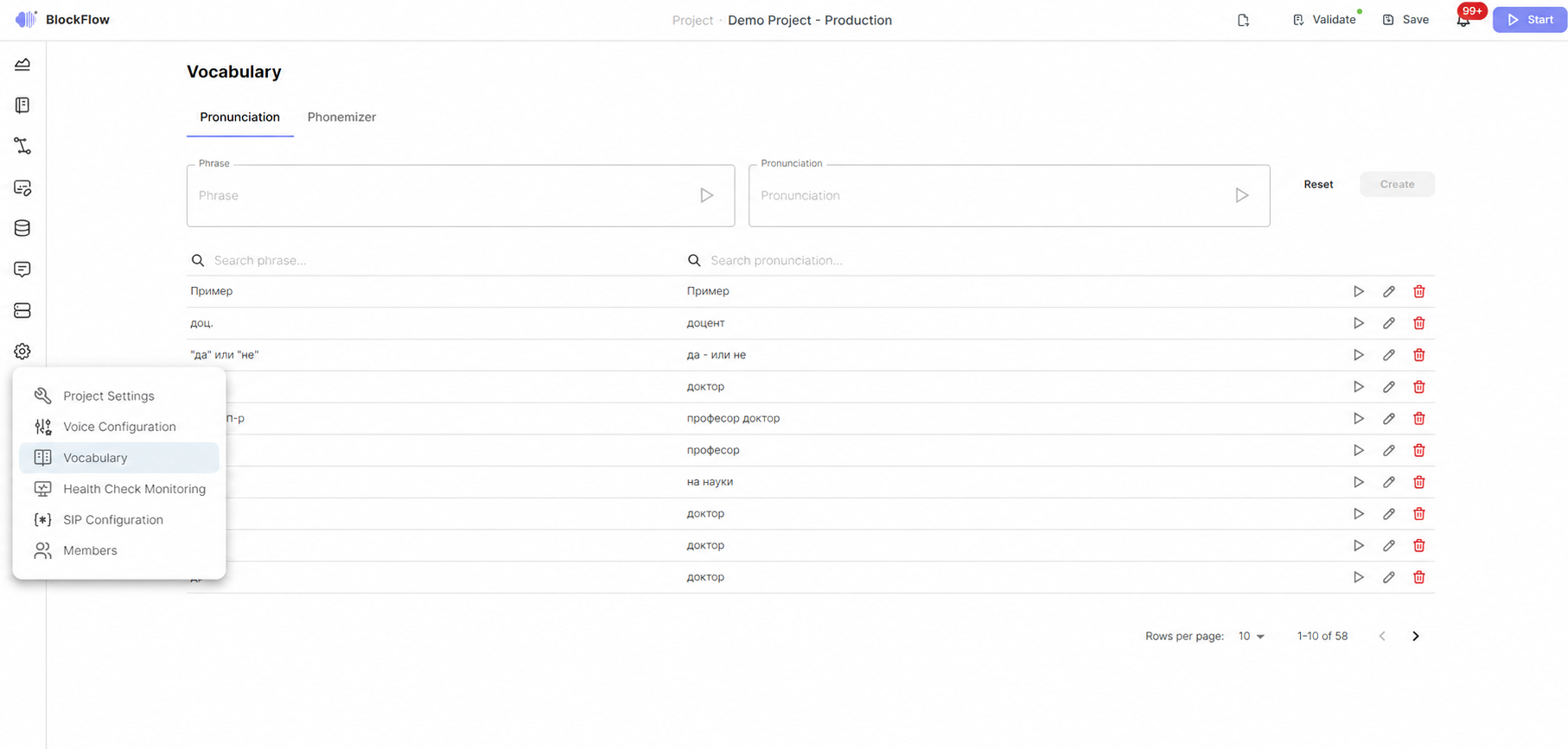
Figure 3 — Management of pronunciation vocabularies.
Project settings page
Where the core information and parameters of a project are defined — metadata, statuses and the connections required for the project's lifecycle from development to production.
- Basic settings — name, description, image and language, used for identification within the system.
- Organisational structure — links the project to an organisation, grouping projects by company and simplifying member management.
- Conversation Monitor connection — the reference project where conversations, logs and ASR results are stored, usually predefined during initialisation.
- Operating mode — Stage for testing and experimentation without affecting production, or Production for the live project. A Stage project can designate the production project that changes are deployed to.
- Project status — Building Scenarios, Testing, In Progress or Production.
- Activity — when active, calls are processed by the current scenarios; when inactive, all incoming calls are redirected to the default number defined in the VoiceBot configuration.
Settings tabs
- General — project details such as name, language and OpenBrain project connection.
- Text-to-Speech — test how the model pronounces words or sentences and add words to the vocabulary list.
- Members — manage user access to the project.
- VDN transfers — store and label phone numbers for easier identification during redirection.
- Configuration — VoiceBot application parameters in four sections: Message Recording, Redirect Message Properties, Speech Model Selection and Chatbot Communication.